

WHY Should we solve the OverTheWire Bandit Ourselves!!
The purpose of this walkthrough—To prepare an individual for the higher command line tasks.
But, First test your capability then jump to the solution if got STUCK!!
This is the Walkthrough of the Bandit (OverTheWire) Challenge From 1-15.
Bandit is the war game which is used to test the Basic Knowledge of a Beginner Over the Command line. So, Don’t panic! Don’t give up! The purpose of this game is for you to learn the basics.
SPOILER ALERT!!!
Why Level Goal (0) : –
The goal of this level is for you to log into the game using SSH. The host to which you need to connect is bandit.labs.overthewire.org, on port 2220. The username is bandit0 and the password is bandit0. Once logged in, go to the Level 1 page to find out how to beat Level 1.
Commands you may need to solve this level
- Ssh-ssh (SSH client) is a program for logging into a remote machine and for executing commands on a remote machine. It is intended to provide secure encrypted communications between two untrusted hosts over an insecure network. X11 connections, arbitrary TCP ports, and UNIX-domain sockets can also be forwarded over the secure channel.
- ssh connects and logs into the specified destination, which may be specified as either [user@] hostname or a URI of the form ssh://[user@] hostname [: port]. The user must prove their identity to the re‐ mote machine using one of several methods. AS provided Below, the command used to connect or create connection – ssh [email protected] -p 2220 where “2220” is the port number to establish connection on the port.

Level Goal (0-1) : –
The password for the next level is stored in a file called readme located in the home directory. Use this password to log into bandit1 using SSH. Whenever you find a password for a level, use SSH (on port 2220) to log into that level and continue the game.
Commands you may need to solve this level
- ls is a Linux shell command that lists directory contents of files and directories.
Solution: – While logged into the bandit0 user profile, I ran the “ls” command to see if I find any useful files. The output showed that there is a file named “README”. I read the file using “cat readme” and it contained 1 line with the following text: “boJ9jbbUNNfktd78OOpsqOltutMc3MY1”. I tried to use the string from the file to log into bandit1 and it worked.
ls
cat readme
Level Goal (1-2) : –
The password for the next level is stored in a file called – located in the home directory
Commands you may need to solve this level
- Cat (concatenate):- command is very frequently used in Linux. It reads data from the file and gives their content as output. It helps us to create, view, and concatenate files.
- Ls: – is a Linux shell command that lists directory contents of files and directories.
- Ls -t:- It sorts the file by modification time, showing the last edited file first. Head -1 picks up this first file.
- -d :- list directories themselves, not their contents.
- -l :- use a long listing format
- –r :- reverse order while sorting
- –s :- print the allocated size of each file, in blocks
Solution: –
Also in addition, when we want to read these type of files we use ”./” or “<”
ssh [email protected] -p 2220
ls
cat ./-
Reference: https://unix.stackexchange.com/questions/16357/usage-of-dash-in-place-of-a-filename
Level Goal (2-3) : –
The password for the next level is stored in a file called spaces in this filename located in the home directory
Commands you may need to solve this level
- Ls
- cat
Solution: –
In order to read files with spaces in the name, you have to put the file name in quotation marks, or we can use backslash.
ssh [email protected] -p 2220
To access the file with spaces we should add back slash
ls
cat spaces\ in\ this\ fiename
Level Goal (3-4) : –
The password for the next level is stored in a hidden file in the inhere directory.
(In case u guys doesn’t know the basic Linux Command then first learn and practice the commands and if got stuck at any Specific level then consider this Reading.)
Solution: –
ssh [email protected] -p 2220
ls
ls -al
cd inhere
ls
ls -al
cat .hidden
Level Goal (4-5) : –
The password for the next level is stored in the only human-readable file in the inhere directory. Tip: if your terminal is messed up, try the “reset” command.
Solution: –
ls -alps
cd inhere/
ls -alps
find -type f | xargs file
cat ./-file07
Level Goal (5-6) : –
The password for the next level is stored in a file somewhere under the inhere directory and has all the following properties:
- human-readable
- 1033 bytes in size
- not executable
Solution: –
ssh [email protected] -p 2220
find . -type f -size -1033c ! -executable
cat ./maybehere07/.file2
The command find . : Searches in the current directory and its subdirectories, -type f: Finds files only, -size -1033c: Finds files smaller than 1033 bytes, ! -executable: Excludes files that are executable. In summary, it lists all non-executable files in the current directory and its subdirectories that are smaller than 1033 bytes

Level Goal (6-7) : –
The password for the next level is stored somewhere on the server and has all the following properties:
- owned by user bandit7
- owned by group bandit6
- 33 bytes in size
Solution: –
ssh [email protected] -p 2220

cd /
find ./ -user bandit7 -group bandit6 -size 33c

cat ./var/lib/dpkg/info/bandit7.password
Level Goal (7-8) : –
The password for the next level is stored in the file data.txt next to the word millionth.
Solution: –t
Here, Grep command will be used.Also, the (|) Unix pipe. The Pipe connects the standard output from the first command and feeds it as standard input to the second command.
ssh [email protected] -p 2220
grep millionth data.txt
Level Goal (8-9) : –
The password for the next level is stored in the file data.txt and is the only line of text that occurs only once.
Solution: –
ssh [email protected] -p 2220cat data.txt | sort | uniq -u
Level Goal (9-10) : –
The password for the next level is stored in the file data.txt in one of the few human-readable strings, preceded by several ‘=’ characters.
Solution: –
ssh [email protected] -p 2220
strings data.txt | grep -E "="
Level Goal (10-11) : –
The password for the next level is stored in the file data.txt, which contains base64 encoded data.
Solution: –
ssh [email protected] -p 2220
base64 -d data.txt
echo " your_data.txt_value=" | base64 --decode
Level Goal (11-12) : –
The password for the next level is stored in the file data.txt, where all lowercase (a-z) and uppercase (A-Z) letters have been rotated by 13 positions.
Solution: –
echo " your's_data.txt_value" | tr '[A-Za-z]' '[N-ZA-Mn-za-m]'
Level Goal (12-13) : –
The password for the next level is stored in the file data.txt, which is a hexdump of a file that has been repeatedly compressed. For this level, it may be useful to create a directory under /tmp in which you can work using mkdir. For example: mkdir /tmp/myname123. Then copy the datafile using cp, and rename it using mv (read the manpages!).
Solution: –
ls
mkdir /tmp/sahil
cp data.txt /tmp/sahil
cd /tmp/sahil
ls
xxd -r data.txt > data
xxd -r data.txt: This command appears to use the “xxd” command to convert a hexdump file (data.txt) back into its original binary format using the “-r” option.

ls
file data
mv data file.gz
gzip -d file.gz
ls
The file command is used to determine the type of a file. The output indicates that data is a gzip compressed file.
The mv command is used to move or rename files. Here, the data file is renamed to data.gz to reflect that it is a gzip compressed file.The gzip -d command decompresses the gzip file. After this command, file.gz will be decompressed and the original data file (uncompressed) will be restored.

file <file>
ls

mv file file.bz2
ls
bzip2 -d file.bz2
ls
file <file>
mv file file.gz
ls
file <file>
mv file file.tar
tar xf file.tar
ls
file data5.bin
mv data5.bin data.tar
ls
tar xf data.tar
ls

rm file.tar
rm data.txt
ls
mv data6.bin file.tar
tar xf file.tar
ls
tar xf data.tar
ls
mv data.tar data8.bin
mv data8.bin data.bzip
file data.bz2
ls
mv data.bz2 data.gz
ls
file data.gz
gzip -d data.gz
ls
file data
cat data
Level Goal (13-14) : –
The password for the next level is stored in /etc/bandit_pass/bandit14 and can only be read by user bandit14. For this level, you don’t get the next password, but you get a private SSH key that can be used to log into the next level. Note: localhost is a hostname that refers to the machine you are working on.
Solution: –
file data.gz
gzip -d data.gz
file data
cat data
ssh [email protected] -p 2220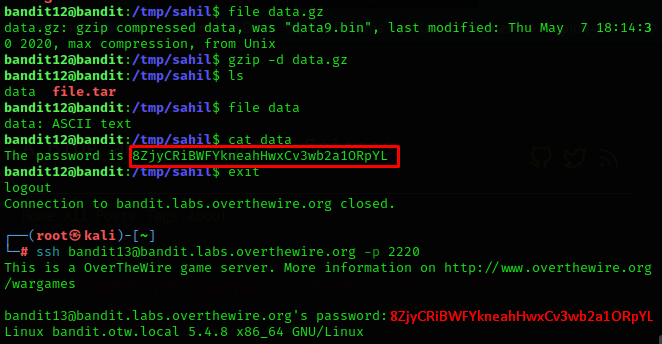
ssh bandit14@localhost -i sshkey.private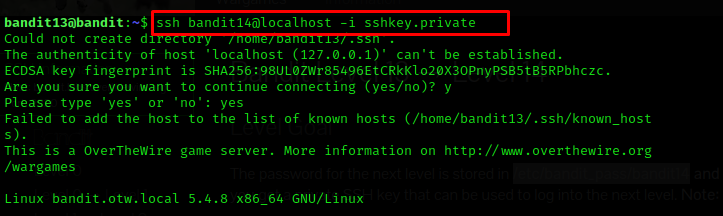
cd /etc/bandit_pass
cat bandit14
Level Goal (14-15) : –
The password for the next level can be retrieved by submitting the password of the current level to port, 30000 on localhost.
Solution: –
echo “4wcYUJFw0k0XLShlDzztnTBHiqxU3b3e” | nc localhost 30000

That’s all for now, stay tuned for more “Bandit” Solution!!
Visit our blogs for CyberSecurity tips !!